
Set up a smart space heater in a suitable room, connect it to the manufacturer’s app, and configure its temperature, schedule, and safety controls. This guide is for beginners who have a compatible heater and smartphone. Allow about 20-40 minutes; setup time can vary with your Wi-Fi and app.

Get home appliances delivered free with Prime
- Fast, free delivery on millions of items
- Prime Video, Amazon Music and more included
- Member-only deals all year

FLANUR 1500W Smart PTC Ceramic Tower Space Heater
- ✔ Power: 1500W
- ✔ Heating element: PTC ceramic
- ✔ Stated coverage: Up to 300 sq. ft.

FLANUR 1500W Smart Ceramic Space Heater with WiFi and Voice Control
- ✔ Power: 1500W
- ✔ Heating element: PTC ceramic
- ✔ Stated coverage: 160–200 sq. ft.

SereneLife Smart Wi-Fi PTC Ceramic Space Heater, 1500W, White
- ✔ Power: 1500W
- ✔ Heating type: PTC ceramic, forced air
- ✔ Dimensions: 5.9 × 5.9 × 9.52 in
Difficulty: Beginner | Time: 20-40 minutes
What You’ll Need
Tools & Materials:
- Smart space heater with its power cord and instructions
- Smartphone or tablet
- Manufacturer’s app and account, if required
- Wi-Fi network name and password, if the heater uses Wi-Fi
Knowledge:
- Basic ability to install an app and connect a phone to Wi-Fi
- Access to the room’s electrical outlet and home Wi-Fi, if required
Check the heater’s manual and rating label before setup. Follow its clearance, outlet, and room-use instructions; requirements vary by model. Do not use an extension cord or power strip unless the manufacturer specifically permits it. Keep the heater away from water, curtains, bedding, furniture, and busy walkways.
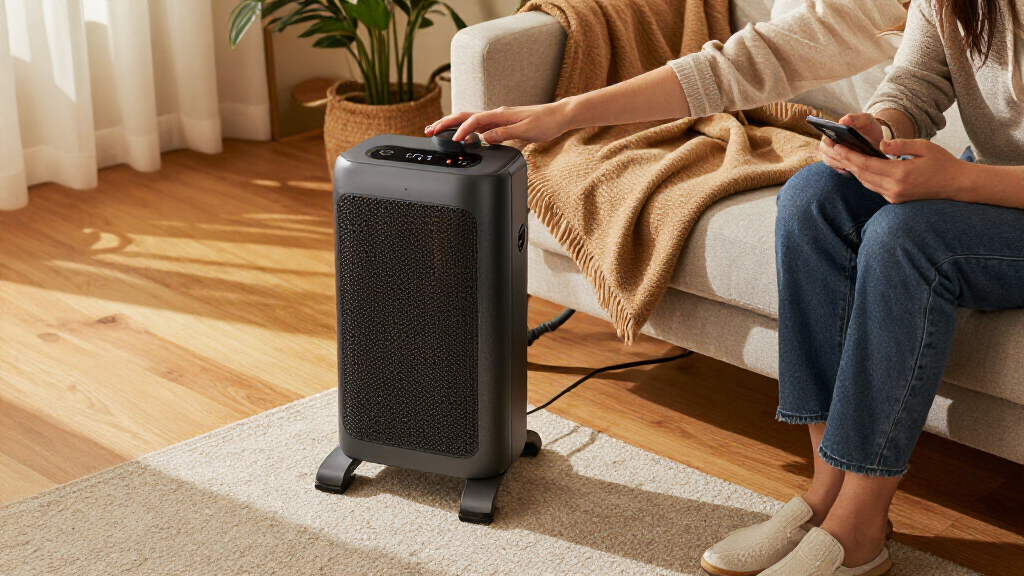
FLANUR 1500W Smart PTC Ceramic Tower Space Heater
For shoppers who want a heater they can operate from across the room or away from home, this is the most complete option here. The app, Alexa and Google Assistant support, and included remote give us several ways to adjust heat, while ECO mode and a thermostat make it easier to target a comfortable temperature instead of leaving the heater on one setting. Its 29-inch tower and 70-degree oscillation are better suited to spreading warmth around a shared space than the compact SereneLife, which is designed to fit on a tabletop or floor.The claimed coverage of up to 300 square feet is the highest in this group, but we should treat that as a manufacturer specification rather than a promise for every layout or insulation level. It still draws 1500W, just like both alternatives, so it cannot be expected to heat a larger or draftier room simply because its listed coverage is broader. It also requires 2.4GHz Wi-Fi for app features and is specified for dry indoor areas. Compared with the other FLANUR, the remote makes everyday control more convenient; compared with SereneLife, the tradeoff is a much larger tower footprint.
Pros:
- App, Alexa, Google Assistant, and remote control
- 70-degree oscillation and multiple heat settings
- Highest stated coverage in this comparison
- Tip-over, overheat, and child-lock protections
Cons:
- Requires 2.4GHz Wi-Fi for app control
- 29-inch tower takes more floor space than SereneLife
- Specified for dry indoor use only
Best for: People who want flexible app, voice, and remote controls for a larger indoor room.
Not ideal for: Buyers seeking a very small heater, use in a bathroom or damp area, or app operation without 2.4GHz Wi-Fi.
Bottom line: Choose this FLANUR when broad stated coverage and the most control options matter more than a compact footprint.
“Choose this FLANUR when broad stated coverage and the most control options matter more than a compact footprint.”
FLANUR 1500W Smart Ceramic Space Heater with WiFi and Voice Control
This FLANUR keeps the smart functions that matter most to a routine: app control, compatible voice assistants, scheduling, and a 12-hour timer. Its ECO mode and adjustable thermostat can help avoid running at full output continuously, while the 70-degree sweep shares warmth across more than one seating position. The listed coverage is 160–200 square feet, which makes it a more cautious fit for a bedroom or smaller office than the 29-inch FLANUR’s broader published claim.The key compromise is practical: there is no remote in the box. If the phone is elsewhere or Wi-Fi is unavailable, the other FLANUR’s included handheld remote is a more convenient fallback. This model does offer a carry handle, quiet operation stated as low as 36 dB, and a 30-second cool-down cycle, alongside tip-over, overheat, and dual-fuse protection. We should note that its listed noise figure is higher than the other FLANUR’s stated minimum, and real operating noise can vary by mode and setting. It also excludes soft carpets and bathrooms, so placement needs more care than the compact SereneLife’s general tabletop-or-floor description suggests.
Pros:
- App scheduling and compatible voice control
- ECO mode, adjustable thermostat, and fan-only setting
- 70-degree oscillation with carry handle
- Multiple safety protections and cool-down cycle
Cons:
- No remote control included
- Requires 2.4GHz Wi-Fi for app features
- Not recommended for soft carpets or bathrooms
Best for: Smart-home users who want scheduled heating and voice control for a smaller dry room.
Not ideal for: Anyone who wants a physical remote, needs coverage beyond the stated 160–200 square feet, or plans to place a heater in a bathroom or on soft carpet.
Bottom line: Pick this model for scheduled smart control in a smaller room if a handheld remote is not important.
“Pick this model for scheduled smart control in a smaller room if a handheld remote is not important.”
SereneLife Smart Wi-Fi PTC Ceramic Space Heater, 1500W, White
SereneLife is the clear choice when a heater needs to move easily from a desk to a nearby floor spot. At 2.9 pounds and 9.52 inches tall, it is far less imposing than either FLANUR tower. The tabletop-or-floor format and included remote also make it convenient to adjust without opening an app. Wi-Fi control and a 12-hour timer add remote access, while Power Heat, ECO, and Fan Only cover the basic uses found on the larger models.That compactness involves a real tradeoff: the listing gives no room coverage figure, and the product’s dimensions alone cannot tell us whether it will suit a particular space. The FLANUR 29-inch Tower is easier to recommend when room reach and oscillation are priorities because its published coverage is broader and it has a 70-degree sweep. The smaller FLANUR also specifies oscillation and a coverage range; SereneLife does not list either. Its 1500W output and adjustable 41–95°F thermostat still make it a flexible personal or supplemental heater, but buyers should not assume it can replace a larger room heater. Wi-Fi app control requires a compatible connection, and use is indoor only.
Pros:
- Compact 9.52-inch height and 2.9-pound weight
- Wi-Fi app and included remote control
- ECO, fan-only, and adjustable thermostat settings
- Tip-over, overheat, and child-lock protections
Cons:
- No room coverage figure is provided
- No oscillation specification is listed
- Designed for indoor use only
Best for: People who want a lightweight heater to move between a desk, bedside, or other nearby indoor spot.
Not ideal for: Buyers choosing primarily by stated room coverage or looking for oscillation to distribute warmth around a larger room.
Bottom line: Choose SereneLife for easy repositioning and compact controls, while keeping expectations modest about room-wide coverage.
“Choose SereneLife for easy repositioning and compact controls, while keeping expectations modest about room-wide coverage.”
As an Amazon Associate we earn from qualifying purchases.
Before You Start
Choose an indoor location on a firm, level surface. Keep the heater’s air intake and outlet clear, and follow the clearances listed in its manual. Plug it directly into a suitable wall outlet unless the manufacturer gives different instructions. Do not place it where it can be knocked over, touched by children or pets, or reached by someone who may not understand its controls. A smart plug is not a substitute for a heater designed for smart control; use one only if both manufacturers explicitly approve that combination.
Check that the heater is in good condition and that your outlet is not loose, damaged, or warm. If you notice a damaged cord, burning smell, sparks, or unusual heat at the outlet, do not use the heater. Unplug it if safe to do so and arrange for qualified help.
Step-by-Step Instructions
Step 1: Choose and prepare the location
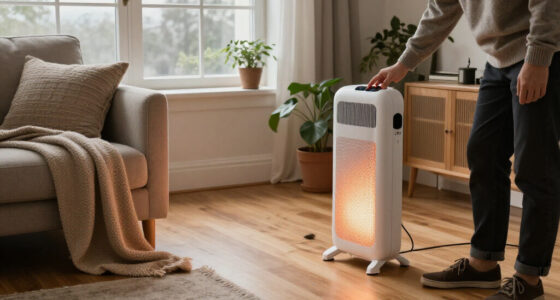
Place the heater upright on a dry, level, stable surface in the room you want to warm. Measure or estimate the required clearance and keep the unit the distance from walls and objects stated in its manual. Move curtains, papers, clothes, bedding, and furniture away from the heater. Keep its cord out of the walkway and avoid running it under a rug.
Choose a location where you can reach the heater’s physical power switch and controls. Do not set it on a bed, sofa, carpet if the manual prohibits that surface, or any surface that might block airflow. Do not use the heater in a bathroom or other damp area unless its instructions explicitly allow that use.
Tip: The heater should warm the occupied area without blowing directly onto fabric or being hidden behind furniture.
Check: The heater stands upright, has the manufacturer’s required clearance, and its air openings and cord are unobstructed.
Step 2: Check the heater and outlet
Inspect the heater, plug, and cord for cracks, fraying, bent prongs, or other damage. Read the rating label and manual to check the required voltage and any outlet restrictions. Plug the heater directly into a wall outlet that matches those requirements. Do not share the outlet through a power strip or extension cord unless the manual explicitly allows it.
Keep the heater switched off while you complete the app setup. If the plug does not fit firmly, the outlet feels loose, or you see damage, stop and use a different suitable outlet or ask a qualified electrician to assess it.
Tip: High-power heaters can place a heavy load on an electrical circuit. Follow the manual’s instructions about circuit use.
Check: The heater is undamaged, the plug fits securely, and the unit is connected as its manufacturer directs.
Step 3: Install the manufacturer’s app
Find the app named in the heater’s manual, quick-start card, or official product listing. Install it from your phone’s app store, open it, and sign in or create an account if prompted. Allow Bluetooth, local network, or location access only as needed for setup and device discovery; the app may explain which permissions it uses.
Check the heater’s manual for model-specific pairing instructions before turning it on. If you have several similar devices, note the model name or label so you select the right heater in the app.
Tip: Use the manufacturer’s official app. A similarly named app from another publisher may not support your model.
Check: The app opens successfully, and you can reach its add-device or setup screen.
Step 4: Connect the heater to the app
Turn on the heater or put it into pairing mode as its manual directs. In the app, select the option to add a device and choose the heater’s exact model or product category. Follow the prompts to pair over Bluetooth or connect to Wi-Fi. Enter the correct network password if requested.
Some heaters support only a 2.4 GHz Wi-Fi network during setup. If the app cannot find the heater or rejects the connection, check the manual for network requirements and confirm that your phone is on a compatible network. Keep the phone near the heater during pairing. Do not reset the heater unless the manufacturer’s instructions call for it.
Tip: If your router combines 2.4 GHz and 5 GHz networks under one name, follow the heater maker’s guidance for connecting devices that require 2.4 GHz.
Check: The app shows the heater as connected or online and displays its current status.
Step 5: Set a safe temperature and operating mode
Open the heater’s controls in the app and select a mode, such as heat, eco, or thermostat, as supported by your model. Set a moderate target temperature suitable for the room and the people using it. Check whether the app displays the room temperature, the target temperature, or both so you can tell what each reading means.
Keep the heater’s built-in controls and safety features enabled. Do not disable tip-over protection, overheat protection, or other safeguards. If the heater has a child lock, use it where children might touch the controls, while keeping the heater itself out of their reach.
Tip: App controls depend on the model. A temperature setting may control the heater’s thermostat, while a separate room sensor may report a different reading.
Check: The app shows the selected mode and target temperature, and the heater responds according to its display or indicator lights.
Step 6: Configure schedules and smart home controls
If you want timed operation, create a schedule in the app for the hours you expect to use the room. Check the days, start time, stop time, and time zone before saving. Set the schedule to turn the heater off when the room is unoccupied if that suits your routine. Do not set a schedule that could run the heater near unattended people, pets, or combustible materials.
If you want voice assistant or smart home control, add the heater through the manufacturer’s supported integration and follow both apps’ setup prompts. Review what each voice command can do. Keep a reachable physical way to switch the heater off, and do not rely on remote access as a replacement for supervision or the heater’s built-in safety features.
Tip: Start with a simple schedule and verify it before relying on it. App labels and available integrations differ by model.
Check: The saved schedule shows the intended days and times, or the supported smart home app lists the heater as available.
Step 7: Test the controls and shutdown
With the area around the heater clear, use the app to change the target setting or operating mode. Watch for the corresponding change on the heater’s display or indicator. Then use the app’s off control and confirm that the heater stops heating. If the heater has a physical power button, check that it still works as described in the manual.
Keep the unit in sight during this first test. If it does not respond, check its power, app connection, and manual before trying again. Do not leave it running unattended just to test remote control or a schedule.
Tip: A connected status does not always mean the heater is actively heating. Look for the mode, indicator, or other status cue your manual identifies.
Check: The app can change a setting and switch the heater off, and the heater’s visible status matches the command.
Common Mistakes to Avoid
- Placing the heater too close to curtains, furniture, or other objects. — Follow the manual’s clearance instructions and keep the air openings unobstructed before powering it on.
- Connecting the heater through an unapproved extension cord or smart plug. — Use a wall outlet as directed. Use an accessory only when the heater and accessory manufacturers both approve that setup.
- Choosing the wrong Wi-Fi band or entering an incorrect network password. — Check the model’s network requirements, confirm the password, and keep your phone near the heater during pairing.
- Assuming app control makes the heater safe to leave unattended. — Follow the manual’s supervision and room-use instructions, keep safety features enabled, and verify schedules before use.
Troubleshooting
Problem: The app cannot find the heater.
Solution: Confirm the heater is powered and in the pairing mode described in its manual. Move your phone closer, enable the connection permissions requested by the app, and retry. Restart the app or phone if needed. Reset pairing only by following the manufacturer’s steps.
Problem: Wi-Fi setup fails even though the password is correct.
Solution: Check whether the model requires 2.4 GHz Wi-Fi, whether the phone and heater are within router range, and whether the network blocks new devices. Follow the manual’s instructions for combined-band routers. If the heater supports Bluetooth controls, use the documented option while you address Wi-Fi setup.
Problem: The heater appears online but does not warm the room.
Solution: Check that the unit is not set to off, fan-only, or a target temperature below the room reading. Confirm the outlet has power and that the heater’s safety cutoff has not activated. Clear blocked air openings and let the unit cool if its manual directs. Stop using it if it smells burnt, sparks, or repeatedly shuts off.
Problem: A schedule runs at the wrong time or does not run.
Solution: Review the selected days, time zone, start and stop times, and whether the app requires the heater to remain connected. Check for schedule conflicts or an enabled sleep, eco, or timer mode. Save the schedule again and verify it in the app before depending on it.
What Success Looks Like
The heater is stable in a clear, suitable location, connected as its manufacturer directs, and visible in the app with the correct status. Its temperature or mode controls respond, and the app can switch it off. Any schedule displays the intended days and times. The cord, outlet, air openings, and safety features remain in proper condition and use.
Next Steps
Check the heater and its app status when you begin each use. Keep the area around the unit clear, and turn it off when it is no longer needed according to the manual. Review schedules when your routine changes, after a power or router outage, or after an app update. Clean the heater only as its instructions specify, with the unit switched off and unplugged when required. Stop using it and seek qualified service if the cord, plug, outlet, or heater becomes damaged or behaves abnormally.
Frequently Asked Questions
Can I control a regular space heater with a smart plug?
Only if the heater and smart plug manufacturers explicitly approve the combination and the heater’s controls support safe remote switching. Many heaters require a button press after power is restored, and some manufacturers prohibit smart plugs. Check both manuals before connecting one.
Does a smart space heater need Wi-Fi?
It depends on the model. Some use Wi-Fi for app controls and remote access; others use Bluetooth, a hub, or only onboard controls. Check the product specifications. A Wi-Fi connection does not change the heater’s placement or supervision requirements.
Why does the app show a different temperature from my thermometer?
The heater’s sensor may be in a different location, and readings can vary with airflow and distance from the heat source. Check the manual for sensor placement and app reading details. Do not move the heater to a restricted location to make the readings match.
Can I leave a smart space heater on while I am away?
Follow the heater’s manual and local fire safety guidance. Remote controls and schedules do not make unattended operation safe for every model or setting. If the instructions require supervision or prohibit unattended use, switch it off before leaving.