
TL;DR
Smart home security cameras capture video and can send motion alerts, stream live footage, and save clips locally or to the cloud. Choose one by checking its power and Wi-Fi needs, recording costs, detection settings, privacy controls, and fit for the area you want to monitor. A camera can help you keep an eye on a home, but it works best as part of a broader security plan.
A crisp video preview can look reassuring until you realize the camera caught a blur where the delivery driver’s face should be. Smart home security cameras can help you check a doorway, watch a driveway, or see what the dog is doing, but their usefulness depends on more than the number printed beside “4K.”

Get home appliances delivered free with Prime
- Fast, free delivery on millions of items
- Prime Video, Amazon Music and more included
- Member-only deals all year
This guide explains what cameras do, where footage goes, how alerts and power affect day-to-day use, and which privacy steps matter. You’ll also get a practical way to compare options, so you can choose equipment that fits your home instead of paying for features you won’t use.
Choose a camera for a specific location and task; resolution alone cannot predict whether a face or package will be clear.
Check whether recordings go to a card, hub, or cloud, and confirm retention time, fees, and offline behavior before buying.
Use activity zones and sensitivity settings to reduce alerts from traffic, weather, and other routine motion.
Secure the account with a unique password, multifactor authentication, and current software; limit who can view shared footage.
Confirm power, Wi-Fi, platform compatibility, and local privacy rules for the camera’s intended placement.
What a smart camera can actually do for your home
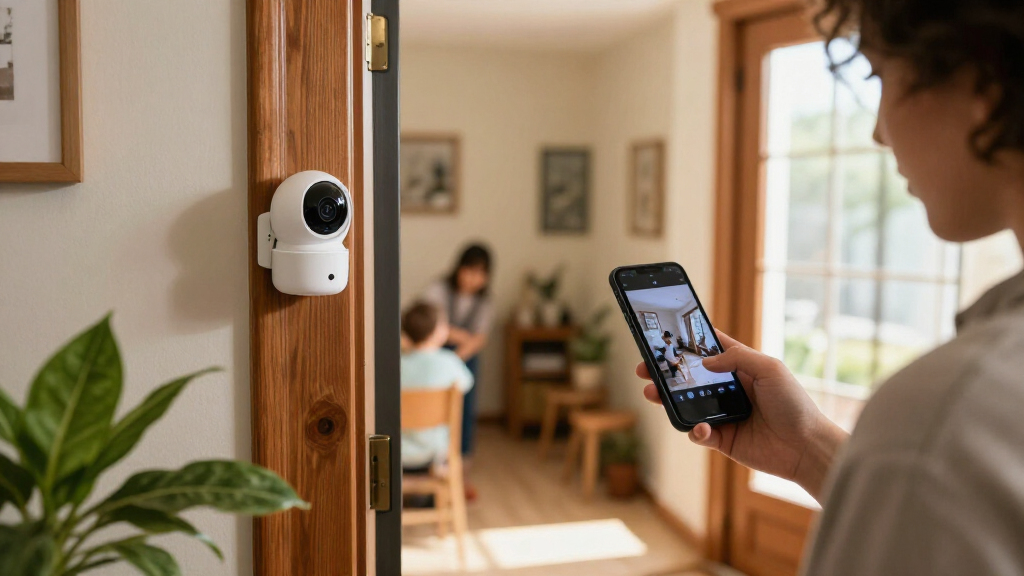
A smart home security camera captures video and, depending on the model, audio; it can also send motion alerts, stream a live view to an app, and save recordings. The clips may go to a memory card, a home hub, or cloud storage. Think of the camera as a doorbell with a notebook: it notices activity, tells you something happened, and may keep a record for you to review.
For example, a camera pointed toward a front path might alert you when a parcel arrives, while a living-room camera could let you check on a pet during lunch. Many cameras connect to Wi-Fi and can work with smart displays, lights, voice assistants, doorbells, or alarm systems. Those connections can be handy: a detected visitor might turn on a porch light, depending on the devices and settings you have.
Features vary by model. Some cameras record continuously; others save short event clips to conserve power or storage. Outdoor models usually need weather protection, and night vision might use infrared for monochrome footage or visible light for color. Treat “smart” as a description of connected features, not a promise that the camera will recognize every event correctly.
A camera helps you monitor a property; it cannot guarantee that nobody enters or replace a wider security plan. Before buying, name the job you need done: identify visitors at the door, check a side gate, or monitor a shared living area. That simple choice gives you a better starting point than shopping by resolution alone.
Products Worth Considering

eufy Security eufyCam C37 4-Camera Kit with 360° Pan and Tilt, Auto Tracking, 2K Video, and Solar Panels

Shark PowerPro Reveal Plus Cordless Stick Vacuum, Charcoal, IZ376H

LEVOIT Vital 200S-P Smart Air Purifier for Large Rooms
As an affiliate, we earn on qualifying purchases.
Choose a camera by matching its features to the spot
Choose a smart home security camera by matching its power, weather rating, view, and connection to the exact place you want to monitor. A camera that suits a covered porch may not suit a distant driveway, and a battery model that’s easy to mount may need more attention than one connected to steady power. Start with the view and daily routine, then compare product features.
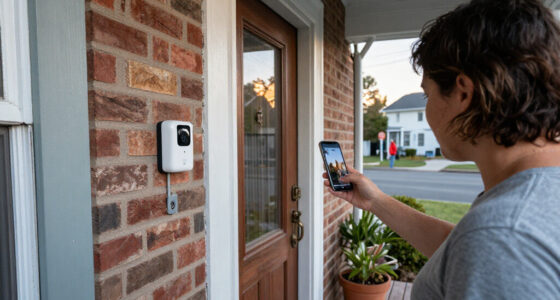
Imagine you want to see deliveries at a front door. A camera close to the doorstep may capture a face and parcel more clearly than a high-resolution camera mounted across a wide yard. If you want to watch a driveway at night, check the night view, lighting, and likely motion blur. A bright headlamp or passing headlights can make a dark scene harder to interpret.
- Pick the area: Mark the entry, path, or room you need to see, and note anything that could block the view.
- Check power and Wi-Fi: Confirm an outlet or wiring is available, or consider charging access for a battery model. Check that your router reaches the mounting spot.
- Compare the recording: Find out whether it saves continuous video or event clips, and whether storage needs a subscription.
- Test the view: Check the image in daylight and after dark. Look at how people and objects appear at the distance that matters.
Battery cameras are easier to place, but battery life depends on settings, temperature, signal strength, and how often activity triggers recording. A busy sidewalk outside the frame may drain a camera faster than a quiet back gate. Wired models avoid routine charging, though installation can be less flexible. For electrical work, use a licensed professional and follow appropriate safety steps, including switching off power before work and using proper PPE.
Understand recording costs before the first alert
Recordings from a smart home security camera may be stored on a memory card, a hub inside your home, or a cloud service. “No monthly fee” often means local storage or limited free features; cloud history, longer retention, or advanced alerts may cost extra. Check what the camera records, how long it keeps clips, and what happens when the internet or service goes offline.
Consider a camera that saves clips to a card: it may keep footage available at home when your internet connection drops, but theft or damage to the camera could take the card with it. A cloud plan keeps footage off-site, though remote access depends on your account and internet service. A hub may offer another local option, but it is still a device that can be damaged or lose power.
Ask how much history each plan includes and whether you can download clips before they expire. If you only need to check occasional deliveries, a short clip history may suit you. If you need to review a week-old event, a plan that deletes clips after a day could leave you with an empty timeline when you need it.
Bandwidth also matters. Upload use depends on resolution, frame rate, and whether the camera uploads continuously or only after motion. A household with several cameras streaming video may put more demand on its router than a single event-based camera. Check the maker’s internet requirements and your network capacity before installing several units. In practical terms, storage and connection are part of the camera’s cost, even when the box looks like a one-time purchase.
Make motion alerts useful instead of noisy
Motion alerts become more useful when you limit what the camera watches and choose the events you care about. A basic sensor might react to a person, a pet, passing traffic, swaying branches, or a flicker of headlights. Person, package, animal, and vehicle detection can filter some alerts, but accuracy varies with placement, lighting, and the camera’s software.
Picture a camera aimed across a front garden at a busy pavement. If every passing cyclist triggers a notification, you may start ignoring alerts—and miss the delivery you wanted to see. An activity zone can exclude the pavement while keeping the path to your door inside the watched area. Lowering sensitivity can help with leaves and rain, though settings that are too low may miss a visitor at the edge of the view.
Give the camera a few days to show you what it flags. Then adjust one setting at a time: narrow the activity zone, change sensitivity, or select a specific event type if your model supports it. A porch light may improve a dark image, while a different camera angle can reduce glare from cars. There is no setting that makes every camera perfect in every yard.
Some newer cameras process certain events on the device, which can reduce how much footage they send to a cloud service. That feature isn’t universal, and “AI detection” does not guarantee correct identification. Test alerts in ordinary conditions: walk the route your visitor would take, watch what happens when a pet crosses the frame, and see whether your chosen settings help you make sense of the notifications.
Protect footage and respect people’s privacy
Protect camera footage by securing its account, updating the device, and limiting who has access. Any internet-connected camera can face security risks, and sensitive video may expose household routines. Use a strong, unique password, enable multifactor authentication when available, and keep the camera’s app and software updated. These steps make it harder for someone to guess a password or take advantage of outdated software.
Before you set up a camera indoors, talk with the people who live in or visit your home. A camera near an entry may help you see who comes and goes; one pointed at a bedroom or bathroom invades a space where people expect privacy. Some indoor models have a privacy shutter or let you turn recording off when you’re home. Make sure you know when audio is captured, too.
Outdoor placement calls for care as well. Aim toward your own doorway or driveway, and avoid recording places where people expect privacy. Audio recording and camera placement may be subject to local law, lease terms, or rules for shared homes, and requirements differ by location. If you rent or share a home, check the applicable rules and tell other occupants where cameras operate when required.
Read how the maker handles account access, video encryption, and sharing controls. Check who can view clips, whether family members have separate accounts, and how to revoke access when someone no longer needs it. A useful camera should give you control over footage, not leave you guessing who can open the feed.
Keep cameras working when Wi-Fi or power fails
A camera’s reliability depends on what it can do when power, Wi-Fi, or its cloud service is unavailable. Remote live viewing, app alerts, and cloud recording often need an internet connection; some models can still detect motion or save footage locally without one. Capabilities differ, so check the offline behavior before you rely on a camera to preserve an important clip.
For instance, if your router loses power overnight, a cloud-only camera may stop sending alerts and uploading video. A camera with local storage might keep recording at home, though you may not be able to view that footage remotely until service returns. A battery backup or battery-powered model can help through a brief power cut, but only if its recording settings and battery charge support the job.
Battery life is a moving target rather than a fixed promise. Frequent motion, cold weather, a weak Wi-Fi signal, and high recording activity can all shorten it. A quiet side entrance may go weeks without much activity, while a camera facing a busy pavement may wake repeatedly. Check battery status in the app and choose a mounting place you can reach safely for charging.
Compatibility also affects how long a camera remains useful. Confirm support for the specific smart home platform and features you want, such as live view, recording, or automations. Matter and other interoperability efforts may make connections easier, but a shared standard does not guarantee every camera feature works across every brand. Review the maker’s support policy and consider what happens if a cloud service or product line is discontinued.
Frequently Asked Questions
Do smart cameras work without internet?
Some cameras can detect motion or record to local storage without internet, but remote viewing, cloud storage, and app alerts often need a connection. Check the model’s offline behavior so you know whether footage will still be saved during an outage.
Do I need a subscription for a smart camera?
Not always. Some cameras offer local recording or limited free features, while cloud history and advanced alerts often require a paid plan. Compare the plan’s clip history and retention period with what you actually need to review.
Where are camera recordings stored, and who can see them?
Footage may be stored on a memory card, a home hub, or a cloud service. Access depends on account permissions and the provider’s security practices, so review sharing controls, retention settings, and how to remove another person’s access.
Can smart home security cameras be hacked?
Any internet-connected device can face security risks. Use a unique password, enable multifactor authentication where available, install software updates, and secure your home Wi-Fi network to reduce common risks.
Are battery-powered cameras as reliable as wired ones?
Battery models are convenient to place, but charging needs and recording behavior depend on activity, temperature, signal strength, and settings. Wired models provide steady power, while battery cameras can suit a spot where running a cable is difficult.
Can a camera accurately identify people, pets, or packages?
Detection features can make alerts more specific, but missed events and false alerts are possible. Lighting, camera angle, distance, and software all affect results, so test the feature where you plan to use it.
Where should I place an indoor camera?
Choose a shared area or entry that serves a clear monitoring purpose, and avoid spaces where people expect privacy. Tell household members about recording, check local rules, and use a privacy shutter or turn the camera off when monitoring isn’t needed.
Conclusion
Choose a camera by starting with the moment you need it to capture: a parcel at the door, a visitor at the gate, or a pet crossing the living room. Then check its view, power, storage, alerts, and privacy controls against that real scene. A camera is only useful when its footage is available, understandable, and appropriate to record.
Set it up, test it in daylight and after dark, and tune alerts until they match your home. The best camera is the one that quietly does its job while you get on with yours.