
Your WiFi signal drops in certain rooms because walls, furniture, and appliances weaken or block the signals, especially thick or metallic materials. Being far from the router also reduces signal strength. Devices like microwaves or cordless phones can cause interference, while crowded WiFi channels slow things down. Proper placement, updated firmware, and minimizing obstacles help. Keep going to find out more ways to improve your WiFi in every room.
Key Takeaways
- Walls, furniture, and building materials like concrete and brick weaken WiFi signals, causing drops in specific rooms.
- Obstructions and interference from household electronics such as microwaves and cordless phones disrupt signal stability.
- Distance from the router and poor placement can significantly reduce WiFi strength in certain areas.
- Outdated firmware and improper network configuration can lead to unreliable connections in specific rooms.
- Overlapping WiFi channels and spectrum congestion from nearby networks cause signal interference and drops.

TP-Link AC1200 WiFi Extender, 2023 Engadget Best Budget Pick, 1.2Gbps Signal Booster for Home, Dual Band 5GHz/2.4GHz, Covers Up to 1500 Sq.ft and 30 Devices,Support Onemesh, One Ethernet Port (RE315)
𝐒𝐭𝐫𝐨𝐧𝐠𝐞𝐫 𝐖𝐢-𝐅𝐢 𝐢𝐧 𝐄𝐯𝐞𝐫𝐲 𝐂𝐨𝐫𝐧𝐞𝐫 – Enjoy extended coverage with strong performance powered by Adaptive Path Selection and…
As an affiliate, we earn on qualifying purchases.
As an affiliate, we earn on qualifying purchases.
Why Does My WiFi Keep Dropping in Certain Rooms?
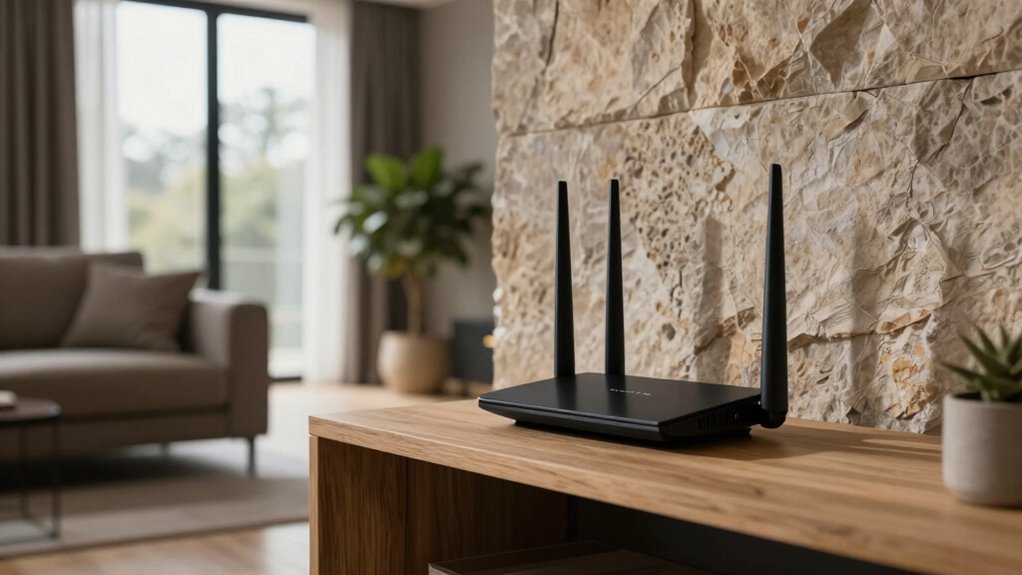
If your WiFi keeps dropping in certain rooms, the problem often stems from obstacles or interference blocking the signal. One common cause is WiFi frequency—2.4 GHz signals travel farther but are more prone to interference, while 5 GHz offers faster speeds but less coverage. Adjusting your router’s frequency settings can improve stability. Additionally, outdated or buggy router firmware can cause connection drops. Keeping your firmware updated ensures your router runs smoothly and handles network traffic efficiently. Sometimes, the firmware update includes improvements for signal stability or fixes for known issues. You can also consider router placement to minimize interference and optimize coverage. Proper network configuration can further enhance your WiFi reliability, especially in challenging environments. By optimizing your WiFi frequency and maintaining current firmware, you can markedly reduce signal drops in specific rooms and enjoy a more reliable connection. Regularly checking your network for interference sources can further enhance your WiFi stability. Being aware of WiFi signal strengths in different areas of your home can help you identify problematic spots and optimize your placement accordingly.

TP-Link Deco X55 AX3000 WiFi 6 Mesh System – Covers up to 6500 Sq.Ft, Replaces Wireless Router and Extender, 3 Gigabit Ports per Unit, Supports Ethernet Backhaul, Deco X55(3-Pack)
Wi-Fi 6 Mesh Wi-Fi – Next-gen Wi-Fi 6 AX3000 whole home mesh system to eliminate weak Wi-Fi for…
As an affiliate, we earn on qualifying purchases.
As an affiliate, we earn on qualifying purchases.
How Do Walls and Furniture Slow Down My WiFi Signal?
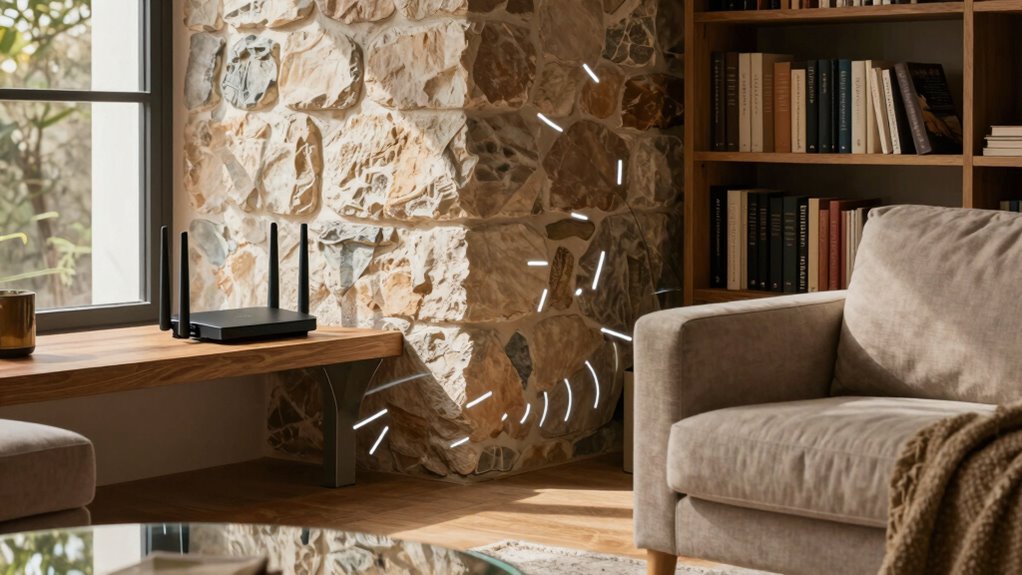
Walls and furniture can considerably weaken your WiFi signal, especially when they act as barriers between your router and devices. Material interference and structural barriers disrupt the signal’s path, reducing its strength. Different materials impact WiFi differently:
- Concrete and brick walls absorb more signal, causing significant slowdowns.
- Metal furniture and fixtures reflect signals, creating dead zones.
- Wood and drywall are less obstructive but still weaken the signal over distance. Additionally, understanding projector technology and how it interacts with room materials can offer insights into optimizing your home setup for better connectivity. These barriers cause the WiFi waves to lose energy or get redirected, leading to weaker signals in certain rooms. Recognizing material properties can help you better understand how different building components influence signal strength. The placement of your router in relation to these structural barriers can significantly impact overall coverage. Understanding how material interference and structural barriers influence your WiFi can help you optimize placement and improve coverage throughout your space, especially by considering signal propagation principles to enhance connectivity.

TP-Link Smart WiFi 6 Router (Archer AX10) – 4 Gigabit LAN Ports, Dual Band 802.11AX Router, Beamforming, OFDMA, MU-MIMO, Parental Controls, Dual-Core 900MHz Processor, Works with Alexa
OneMesh Compatible Router – Form a seamless WiFi when work with TP-Link OneMesh WiFi Extenders
As an affiliate, we earn on qualifying purchases.
As an affiliate, we earn on qualifying purchases.
Does Being Far From the Router Make My Wifi Worse?

When you’re far from your router, your WiFi signal weakens because signal strength drops with distance. Obstacles like walls and furniture can further block or slow down the connection, making it worse the farther you go. The router’s placement also plays a big role in how well your WiFi covers different areas of your home. Incorporating outdoor features like landscaping can sometimes help improve signal distribution if your router is positioned near the exterior of your house. Additionally, understanding the home technology basics can help you optimize your setup for better coverage throughout your space. Proper safety precautions during setup and maintenance can also prevent potential issues that might affect your WiFi performance. Regularly inspecting your network and cleaning your router can ensure optimal signal transmission and prevent interference. Using advanced networking techniques, such as mesh systems, can further extend coverage to hard-to-reach areas.
Signal Strength Diminishes Over Distance
The farther you move from your WiFi router, the weaker the signal becomes, which can lead to slower speeds and dropped connections. This is mainly due to signal attenuation, where the strength decreases over distance. Different frequency bands, like 2.4 GHz and 5 GHz, also impact how quickly the signal drops:
- 2.4 GHz signals travel farther but are more prone to interference.
- 5 GHz signals offer faster speeds but have a shorter range.
- As distance increases, the signal weakens more rapidly, reducing performance.
Your device’s connection quality depends on how well it can maintain a strong link with the router, even at larger distances. Understanding how distance and frequency bands influence signal attenuation helps you optimize your WiFi setup for better coverage.
Obstacles Block WiFi Pathways
Obstacles like furniture, appliances, and building materials can considerably weaken your WiFi signal, regardless of the distance from your router. These objects cause signal attenuation, which reduces the strength and quality of your WiFi as it passes through or around them. Thick walls, metal furniture, and dense materials like concrete or brick are especially problematic. Additionally, electromagnetic interference from devices such as microwaves, cordless phones, and Bluetooth gadgets can disrupt signal pathways, further degrading your connection. Even small objects can cause localized interference, making your WiFi less reliable in certain rooms. Understanding that obstacles impact your WiFi not just by blocking signals but also through interference helps explain why some areas experience worse performance despite being close to the router. Exploring environmental impact of tissue paper can provide insights into how materials in your home influence signal strength and interference. Recognizing how building materials influence signal behavior is essential for optimizing your WiFi setup. Being aware of signal interference sources can help you identify and mitigate potential disruptions to improve your WiFi coverage. Additionally, considering the material composition of your walls and furniture can aid in selecting effective placement for your router and extenders.
Router Placement Affects Coverage
Even if your WiFi signal isn’t blocked by obstacles like furniture or walls, its strength still diminishes with distance from the router. Proper placement is key to maximizing coverage and guaranteeing good signal distribution throughout your home. To improve your WiFi, consider these tips:
- Place the router centrally in your home to evenly distribute the signal.
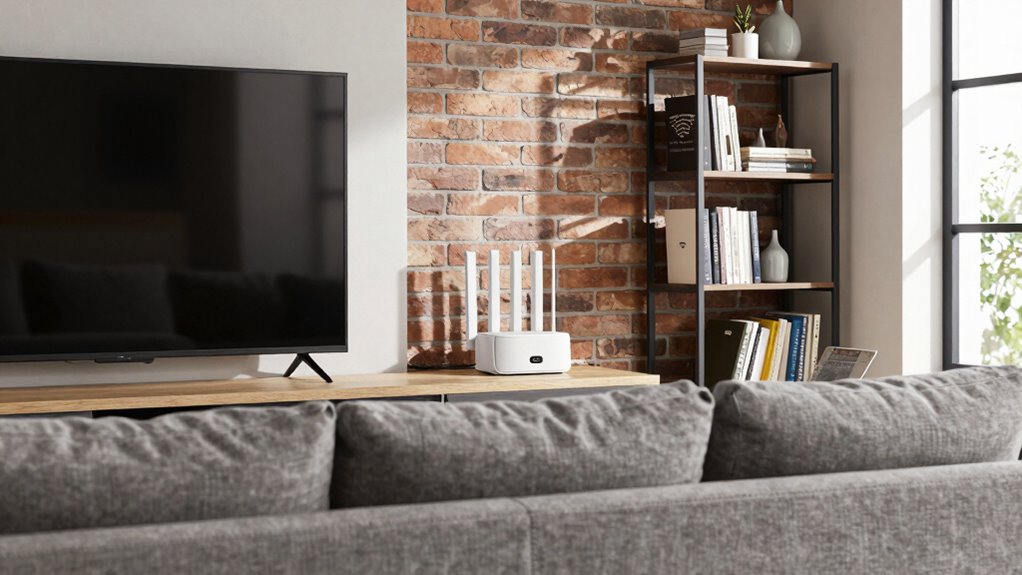
- Elevate the router off the floor, ideally on a shelf or high surface, to reduce interference.
- Avoid placing it near electronic devices or metal objects that can disrupt signal flow.
Optimal placement ensures your WiFi reaches all rooms effectively. Being far from the router weakens the signal, leading to slower speeds and dropped connections. Keep these principles in mind for better coverage and reliable internet everywhere.
TP-Link AC1200 WiFi Extender, 2023 Engadget Best Budget Pick, 1.2Gbps Signal Booster for Home, Dual Band 5GHz/2.4GHz, Covers Up to 1500 Sq.ft and 30 Devices,Support Onemesh, One Ethernet Port (RE315)
𝐒𝐭𝐫𝐨𝐧𝐠𝐞𝐫 𝐖𝐢-𝐅𝐢 𝐢𝐧 𝐄𝐯𝐞𝐫𝐲 𝐂𝐨𝐫𝐧𝐞𝐫 – Enjoy extended coverage with strong performance powered by Adaptive Path Selection and…
As an affiliate, we earn on qualifying purchases.
As an affiliate, we earn on qualifying purchases.
Which Devices Interfere With My Wifi Signals?
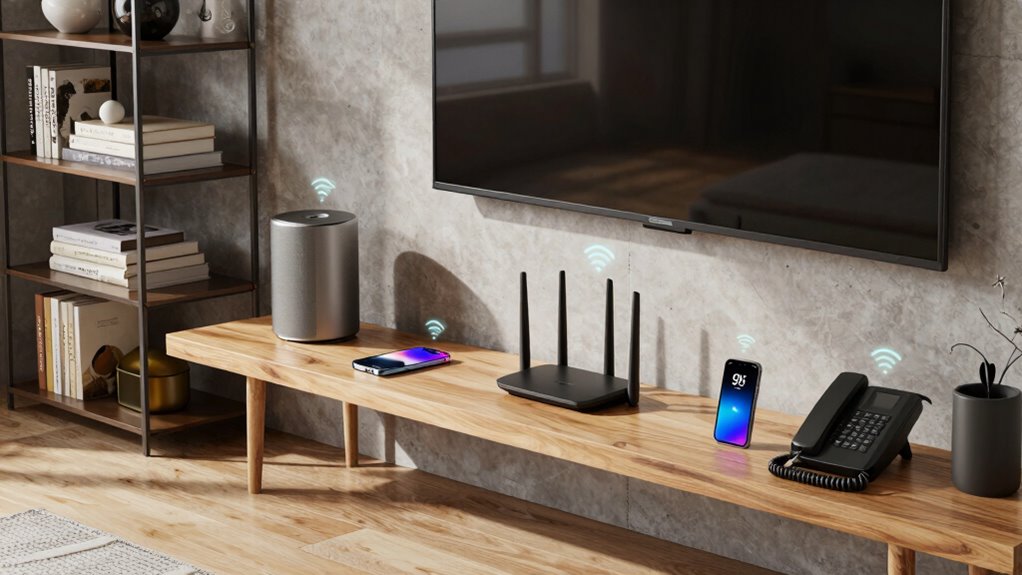
Your WiFi signal can be disrupted by various devices around your home. Wireless gadgets like cordless phones and baby monitors often cause interference, while household electronics such as microwaves can disrupt signals when in use. Additionally, nearby networks competing for the same spectrum can weaken your connection, especially in crowded areas.
Wireless Devices Causing Interference
Have you ever wondered why your WiFi signal drops in certain rooms? Wireless interference from specific devices can be the culprit. These devices emit signals that disrupt your WiFi, especially if they aren’t compatible with your network’s frequency. Common offenders include:
- Microwave ovens – operate on the 2.4 GHz band, interfering with WiFi signals.
- Cordless phones – especially older models, can cause significant interference.
- Baby monitors – wireless monitors often use the same frequency as WiFi, leading to signal clashes.
To reduce interference, ensure device compatibility with your WiFi band and keep these devices away from your router. Recognizing which devices cause wireless interference helps maintain a stronger, more consistent WiFi signal throughout your home.
Household Electronics Disrupting Signal
Many household electronics can interfere with your WiFi signals, causing disruptions and dead zones. Smart home devices like cordless phones, baby monitors, and microwave ovens often emit electrical interference that weakens your WiFi connection. These devices operate on similar frequencies as your router, creating interference that disrupts data transmission. Even appliances with motors or dimmer switches can introduce electrical noise into your home wiring, further degrading signal quality. To improve your WiFi, keep electronics that generate electrical interference away from your router and its antennas. Upgrading to devices with better shielding or switching to less interference-prone smart home gadgets can also help. Minimizing electrical interference guarantees a more stable, stronger WiFi signal throughout your home. Paying attention to battery management can help prevent electrical noise caused by poorly maintained or incompatible power supplies. Additionally, understanding electrical noise and how it impacts your network can guide you in optimizing your home’s setup. Using proper wiring and grounding techniques can further reduce the effects of electrical interference on your WiFi. Being aware of household electrical systems can also help identify potential sources of interference and improve overall network stability. Incorporating electromagnetic interference mitigation strategies can further enhance your WiFi reliability.
Nearby Networks Crowding Spectrum
When multiple nearby networks operate on the same or overlapping WiFi channels, they can quickly crowd the spectrum and cause interference. This spectrum congestion reduces your WiFi’s efficiency, leading to slower speeds and dropped signals. Network overlap happens when several routers use channels too close together, competing for the same frequency space. To avoid this, consider:
- Switching to less congested channels on your router’s settings.
- Using a WiFi analyzer to identify crowded channels nearby.
- Upgrading to a dual-band or tri-band router to better manage spectrum use.
What Are Practical Ways to Boost WiFi Coverage at Home?
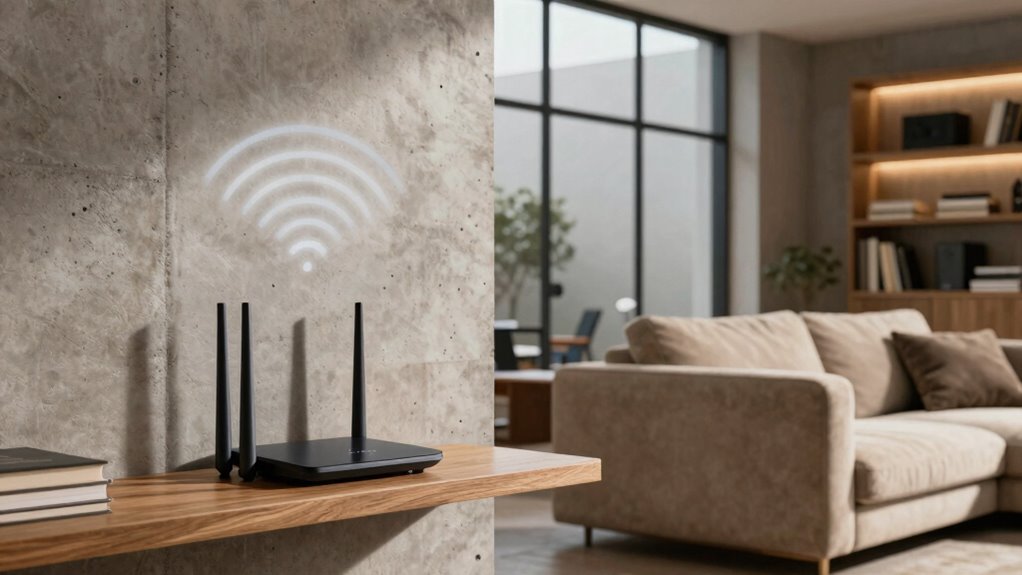
Boosting your WiFi coverage at home doesn’t have to be complicated. Start by repositioning your router to a central, elevated spot, avoiding obstacles like thick walls or metal objects. Consider upgrading to a modern router that supports Smart home integration, enabling seamless control and better coverage. Using a WiFi extender or mesh network system can also blanket your home with a stronger signal, especially in dead zones. Make sure your network security protocols are up to date to prevent unauthorized access that could slow down your connection. Regularly update your router’s firmware for peak performance and security. These practical steps help improve coverage, keep your network secure, and support smart home devices, making your WiFi more reliable across all rooms. Proper placement and utilizing the right tools can significantly enhance your WiFi signal strength, and overall network reliability, especially by understanding how whole-home water systems can impact your home’s infrastructure and performance.
Troubleshooting Tips for Weak WiFi in Specific Rooms

Are you experiencing weak WiFi signals in certain rooms despite a strong overall network? To troubleshoot, start by checking your router’s placement—keep it central and elevated to improve signal distribution. Next, consider updating your WiFi security settings to prevent unauthorized use, which can slow down your internet speed. Finally, test the connection with a device close to the problem area; if the speed improves, try repositioning your router or adding a WiFi extender. Additionally, ensure your router’s firmware is current, as updates can enhance performance and security. Addressing these issues can help boost your WiFi signal in specific rooms, providing stronger coverage and better internet speed, while maintaining your network’s WiFi security.
Frequently Asked Questions
Can Wifi Signal Issues Be Caused by Nearby Electronic Devices?
Yes, electronic devices can cause WiFi signal issues. Electronic interference from gadgets like cordless phones, microwaves, or Bluetooth devices can disrupt your WiFi, leading to slow speeds or dropped signals. These devices may also cause signal blockage if they’re placed too close to your router or WiFi receiver. To improve your connection, keep electronic devices away from your router and minimize electronic interference in your home.
Does the Type of Building Material Affect Wifi Performance?
Building materials definitely influence WiFi performance by causing signal interference. Thick walls, metal, concrete, and brick can block or weaken the wireless signal, leading to slower speeds or dropped connections. Although some materials might seem harmless, they can considerably dampen WiFi signals, especially in larger or more solid structures. To improve your connection, consider relocating your router away from dense building materials or using range extenders to bypass interference.
How Does Router Placement Influence Wifi Strength in Different Rooms?
Your router placement directly impacts WiFi strength in different rooms. Position it centrally, elevated, and away from walls or large metal objects to maximize coverage. Avoid placing it near devices that cause signal interference, like microwaves or cordless phones. Good placement reduces dead zones and guarantees a stronger signal throughout your home. Keep the router off the floor and away from thick building materials for peak performance.
Are There Specific Times of Day When Wifi Drops More Often?
You might notice your WiFi slows down during peak hours when many devices are online, creating interference patterns that hamper your connection. These times often occur in the evenings or early mornings when everyone’s streaming, gaming, or working from home. To improve your signal, try scheduling heavy tasks during off-peak hours or optimizing your router placement. Staying aware of these patterns helps you enjoy smoother internet throughout the day.
Can Upgrading My Router Improve Wifi Coverage Throughout My Home?
Upgrading your router can definitely improve WiFi coverage across your home. Newer routers often use dual-band WiFi frequency, which helps reduce interference and boosts speed. Additionally, routers with adjustable antennas can be aimed for better signal strength in specific areas. A higher-quality router with advanced features guarantees a more consistent connection, minimizing dead zones and improving your overall WiFi experience throughout your home.
Conclusion
Did you know that over 50% of homeowners experience WiFi issues in certain rooms? Understanding how walls, furniture, and device interference affect your signal can help you improve coverage. By trying simple solutions like repositioning your router or using extenders, you can guarantee a stronger connection everywhere. Don’t let weak WiFi hold you back—take action today and enjoy seamless internet throughout your home!