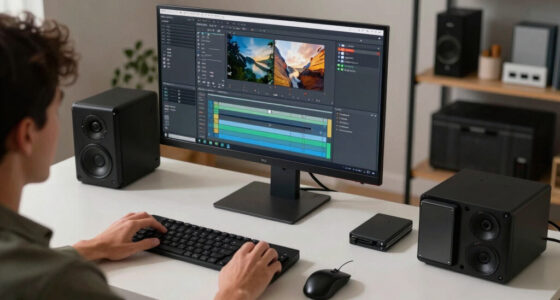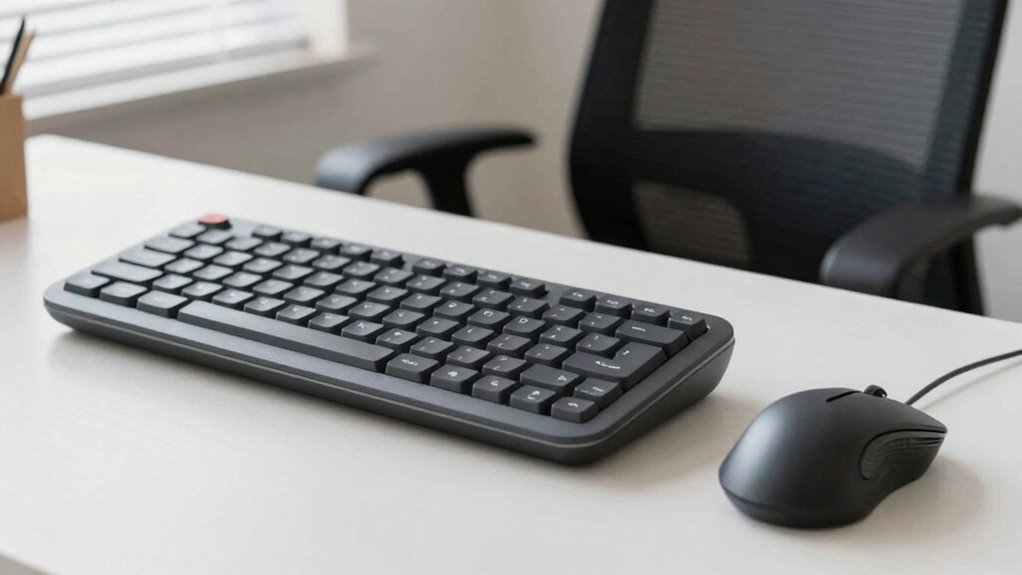

To reduce keyboard and mouse strain, set up your workspace with proper ergonomics—adjust your desk and chair so your elbows are at a 90-degree angle and your wrists stay neutral. Use ergonomic tools like split keyboards, supportive wrist rests, and adjustable mice. Take regular breaks to stretch, move, and relax your hands and wrists. Focus on proper typing and clicking techniques, and incorporate exercises into your routine. Keep exploring for more tips to protect your hands long-term.

Get home appliances delivered free with Prime
- Fast, free delivery on millions of items
- Prime Video, Amazon Music and more included
- Member-only deals all year
Key Takeaways
- Choose ergonomic keyboards and mice that support natural wrist and hand positions.
- Maintain neutral wrist alignment by using wrist rests and adjusting device height.
- Take regular breaks every 30 minutes to stretch and move to prevent muscle fatigue.
- Use light, controlled clicking and typing techniques to reduce unnecessary effort.
- Keep your workspace properly arranged with monitor at eye level and feet flat on the floor.
ergonomic keyboard with wrist support
As an affiliate, we earn on qualifying purchases.
As an affiliate, we earn on qualifying purchases.
How Poor Ergonomics Cause Hand and Wrist Strain
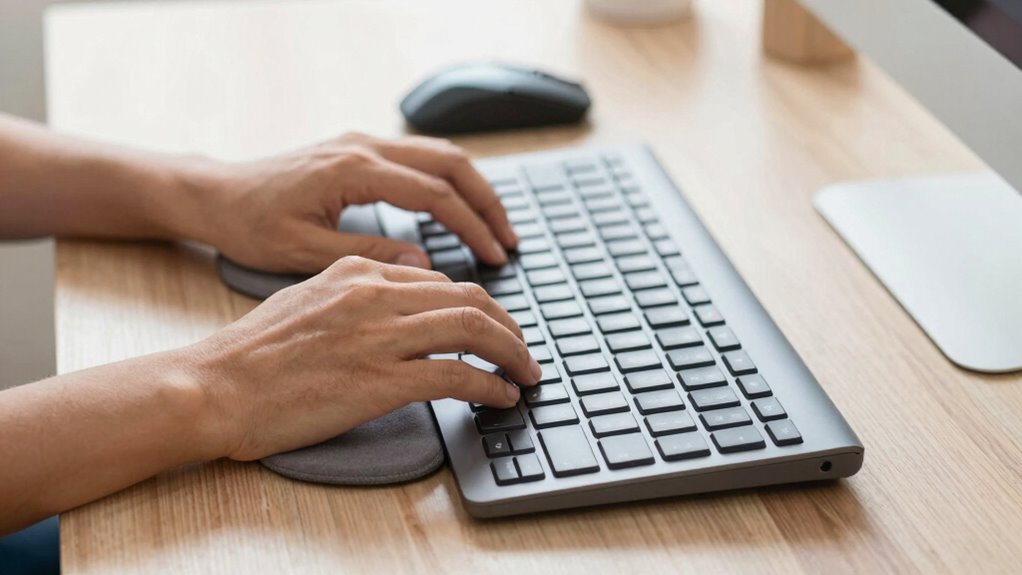
Poor ergonomics can considerably contribute to hand and wrist strain, especially when you spend long hours typing or using a mouse. Improper positioning can cause wrist compression, putting pressure on nerves and tissues, leading to discomfort. When your wrist isn’t aligned correctly, you may also experience finger fatigue, as your fingers work harder to press keys or click buttons. Over time, this strain can result in pain, numbness, or tingling. Using an awkward wrist angle or excessive force increases these issues. Without proper support, your muscles and tendons become overstressed, worsening fatigue and risking injury. Ensuring your workspace promotes a neutral wrist position and minimizes unnecessary pressure is essential to prevent these problems and maintain comfort during extended computer use. Additionally, incorporating ergonomic solutions can help reduce strain and improve overall comfort. Proper workspace organization and regular breaks can also significantly lessen the risk of repetitive strain injuries. Implementing adjustable keyboard height settings can further promote optimal wrist alignment and reduce strain during prolonged use. Paying attention to ergonomic principles can make a noticeable difference in preventing discomfort and supporting long-term hand health. Regularly adjusting your workspace to suit your posture can also help maintain ergonomic alignment and prevent strain.
As an affiliate, we earn on qualifying purchases.
Recognize the Signs of Strain and When to See a Doctor
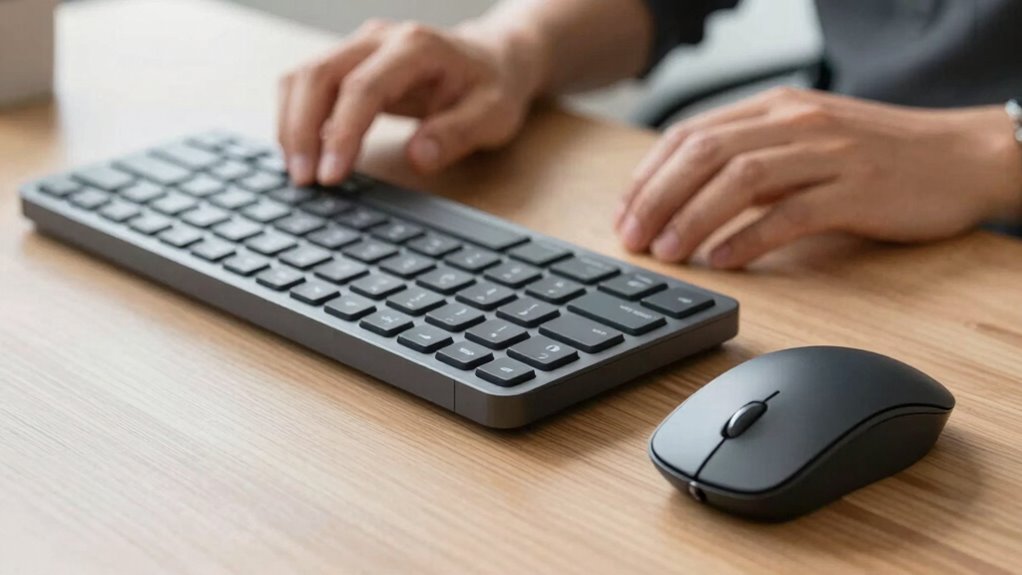
Pay attention to persistent discomfort or pain in your hands, wrists, or forearms, as these are common signs of strain from repetitive computer use. Muscle fatigue, numbness sensation, or tingling can indicate nerve compression or overuse. If these symptoms persist, worsen, or are accompanied by weakness or loss of coordination, it’s time to see a doctor. Early intervention can prevent more serious conditions like carpal tunnel syndrome or tendinitis. Recognize these warning signs: Zodiac Traits and Personalities can sometimes influence individual susceptibility to repetitive strain injuries. For example, horsepower of electric dirt bikes demonstrates how power output can be comparable to traditional bikes, which can be relevant if considering ergonomic adjustments for high-performance gear. Understanding essential DIY tools and proper safety tips can also help prevent strain by ensuring correct setup and use of ergonomic equipment. Additionally, being aware of psychological factors such as stress and fatigue can influence how susceptible you are to developing strain injuries. Incorporating essential oils with anti-inflammatory or relaxing properties, such as lavender or peppermint, may also help in managing discomfort and reducing stress-related tension. Symptom | Description | When to Seek Help |
| ——————– | ————————————- | —————————— |
|---|---|---|
| Muscle fatigue | Persistent tiredness in muscles | After rest, persists |
| Numbness sensation | Loss of feeling or tingling | Continues or worsens |
| Pain or discomfort | Sharp or dull pain in affected area | Lasts longer than a few days |
Ignoring these signs can lead to long-term damage.
wrist rest for keyboard and mouse
As an affiliate, we earn on qualifying purchases.
As an affiliate, we earn on qualifying purchases.
Set Up Your Workspace for Better Posture and Comfort
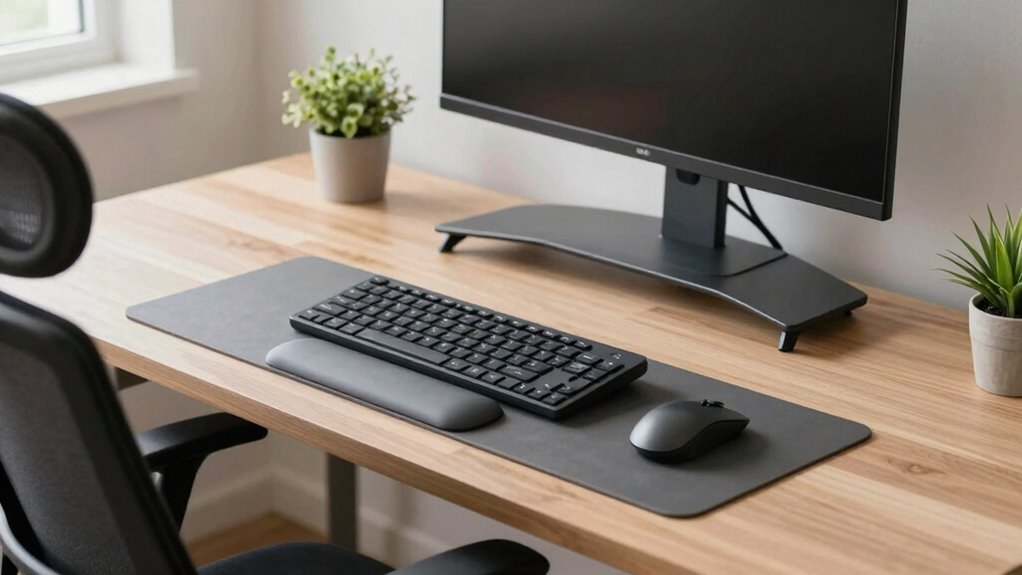
Creating an ergonomic workspace is essential to maintaining good posture and comfort while using your keyboard and mouse. Start by adjusting your desk height so your elbows are at a 90-degree angle and your wrists stay straight. Your monitor should be positioned directly in front of you, with the top of the screen at eye level to prevent neck strain. Keep the monitor about an arm’s length away for clear visibility. Make certain your chair supports your lower back and allows your feet to rest flat on the floor. Proper monitor positioning reduces the need to tilt your head up or down, helping prevent neck and shoulder tension. By setting up your workspace thoughtfully, you’ll minimize strain and create a more comfortable, health-conscious environment. Additionally, incorporating simple ergonomic adjustments can further enhance comfort and reduce fatigue during long periods of computer use. Ensuring your workspace adheres to ergonomic principles can help prevent repetitive strain injuries and promote overall well-being. Incorporating proper lighting can also reduce eye strain and improve visibility. Paying attention to workstation organization can help you maintain a more natural and relaxed posture throughout the day. A well-organized workspace can further contribute to posture correction and overall comfort.
As an affiliate, we earn on qualifying purchases.
Choose the Right Keyboard and Mouse to Prevent Strain
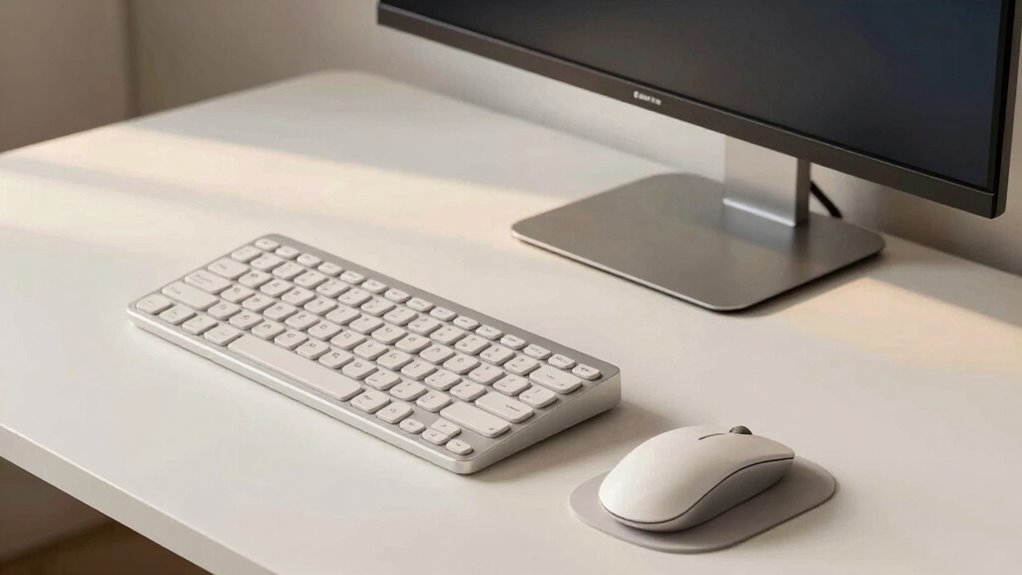
Choosing the right keyboard and mouse can considerably reduce strain and improve comfort during long hours at your desk. Look for a keyboard that offers customization options, such as adjustable height, wrist support, and key layout, to better match your hand position. A keyboard with a split or ergonomic design can also help prevent strain. When selecting a mouse, consider one with adjustable mouse sensitivity to suit your movements, reducing unnecessary effort. An ergonomic mouse shape that fits your hand comfortably minimizes tension. Keep in mind that a properly fitted keyboard and mouse promote natural wrist and arm positions, reducing fatigue. Prioritize comfort and adjustability to create a workspace that supports your health and productivity. Additionally, exploring accessibility features like Guided Access can help create a safer and more focused environment for kids using these devices. Incorporating ergonomic accessories such as wrist rests or mouse pads with gel support can further enhance comfort and reduce strain during extended use. Paying attention to ergonomic principles can also guide you in setting up a more health-conscious workspace.
Use Proper Typing and Clicking Techniques

To minimize strain while typing and clicking, adopting proper techniques that promote natural hand and finger movements is essential. Maintaining correct finger positioning helps reduce fatigue and prevents injury. Use a light touch when clicking, avoiding excessive force, which can strain your tendons. Your fingers should rest comfortably on the keys, with wrists kept neutral and relaxed. Focus on a smooth, controlled click technique, minimizing unnecessary movements. Be mindful of your hand posture—keep your hands slightly elevated and avoid bending your wrists. This approach not only prevents discomfort but also improves efficiency. Remember, small adjustments in how you position and move your fingers can make a significant difference in reducing long-term strain. Proper ergonomic setup can further support healthy typing habits and reduce the risk of repetitive strain injuries. Incorporating correct posture habits can enhance comfort and productivity during extended computer use.
Take Regular Breaks and Move Throughout the Day
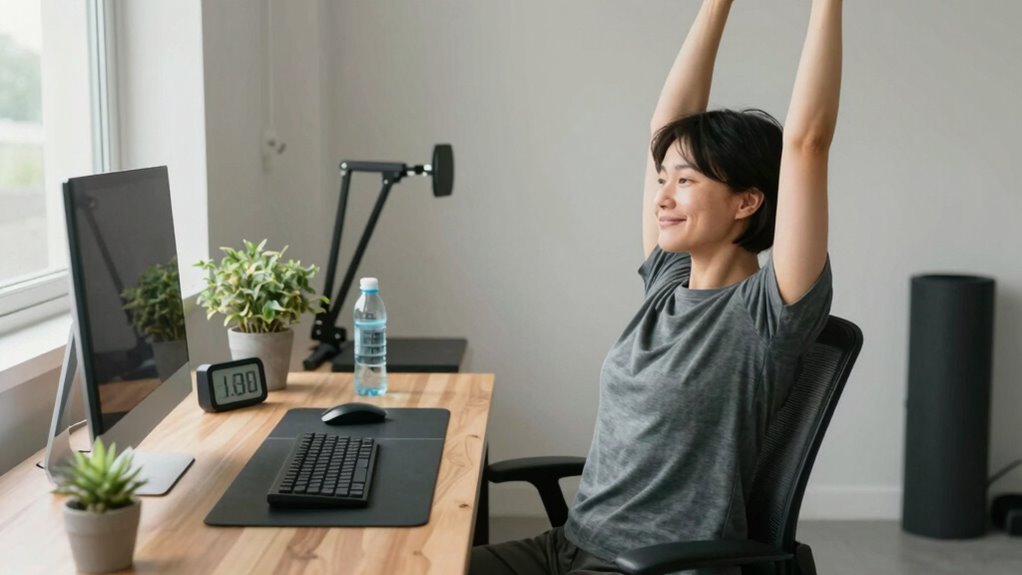
Taking regular breaks and moving throughout the day is essential for preventing strain and promoting overall comfort. Stand up, stretch your arms, neck, and back with simple stretching routines every 30 minutes. This helps relieve tension and improves circulation. Use hydration tips to stay refreshed—drink water regularly to avoid fatigue and keep your muscles flexible. During breaks, walk around or do light exercises to reduce stiffness and prevent repetitive strain injuries. Avoid staying seated for long periods; even short movements make a difference. Incorporating these habits into your routine helps reset your posture and reduces discomfort. Consistent movement and hydration are key to maintaining ergonomic health and preventing keyboard and mouse strain over time. Additionally, choosing ergonomic accessories like an adjustable keyboard and mouse setup can further reduce strain during extended use. Paying attention to ergonomic principles can optimize your workspace for better comfort and health. Remember, proper positioning and support are crucial for reducing strain, ensuring you stay comfortable throughout your workday.
Add Ergonomic Accessories and Supports to Your Desk
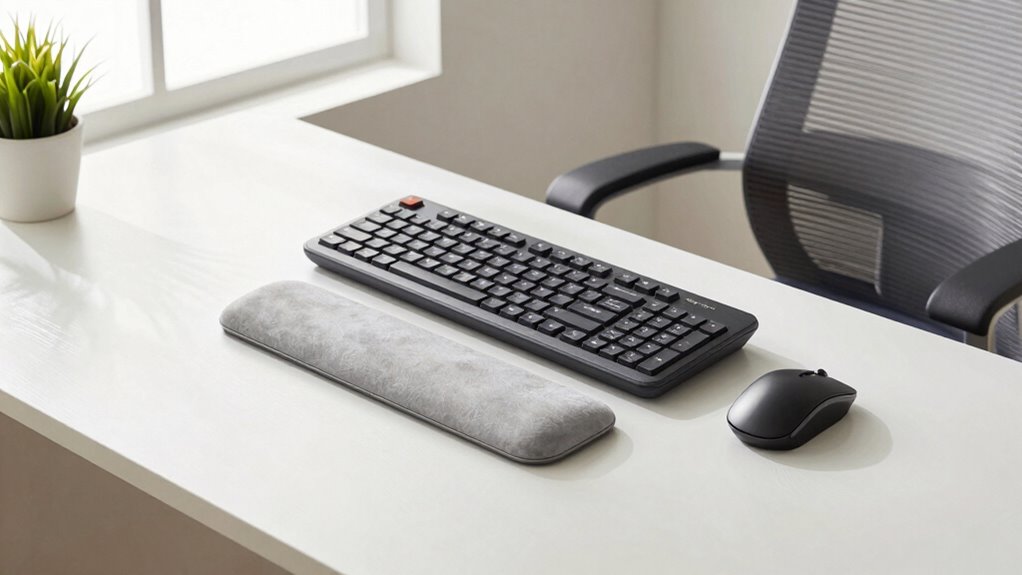
Adding ergonomic accessories and supports to your desk can considerably reduce strain during long hours of computer use. These accessories help maintain proper posture and minimize discomfort. Consider investing in a keyboard tray or adjustable stands to position your keyboard and mouse at the right height. Desk supports like monitor risers or lumbar cushions can improve your overall setup, reducing tension in your neck and back. Ergonomic accessories can also include wrist rests that provide cushioning and support, preventing strain in your wrists. Properly arranged desk supports ensure your workspace promotes comfort and productivity. When choosing ergonomic accessories, prioritize adjustable options that suit your height and work habits. Small adjustments with the right desk supports can make a big difference in reducing keyboard and mouse strain.
Desk Exercises and Hand Stretches for Relief
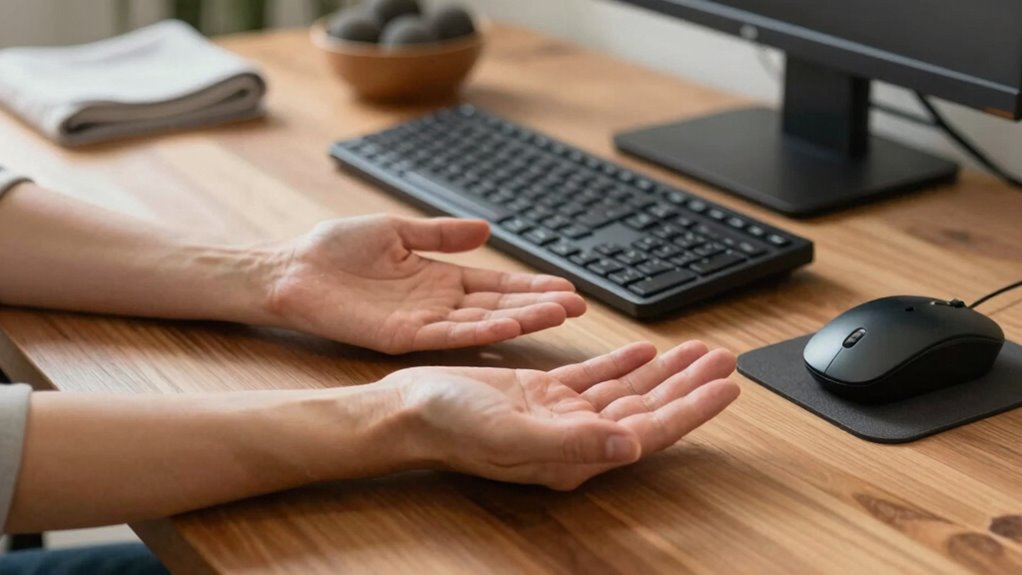
Since prolonged computer use can lead to stiffness and discomfort, incorporating desk exercises and hand stretches into your routine can provide quick relief. Start with simple finger stretches: spread your fingers wide, hold for a few seconds, then relax. Repeat several times to improve flexibility. A gentle hand massage can also ease tension; use your opposite hand to knead your palm and fingers, increasing circulation. Wrist circles and flexion stretches help loosen tight muscles. Take breaks to stretch your hands and wrists regularly, preventing strain buildup. These quick exercises can reduce discomfort and keep your hands more flexible throughout the day. Incorporating hand massages and finger stretches into your routine is an effective way to combat fatigue and maintain comfort during long hours at your desk.
Tips for Maintaining Long-Term Ergonomic Habits

Establishing long-term ergonomic habits requires consistent effort and mindful awareness of your workspace. To maintain good hand posture and wrist alignment, develop routines that reinforce healthy practices. Regularly check your hand and wrist positions to prevent strain. Keep your wrists straight and aligned with your forearms, avoiding bending or twisting. Incorporate these tips to sustain healthy habits:
- Set reminders to adjust your hand posture and wrist alignment throughout the day.
- Use ergonomic tools like wrist rests to support proper positioning.
- Take short breaks frequently to reset your posture and reduce fatigue.
Frequently Asked Questions
How Can I Tell if My Keyboard or Mouse Is Causing My Discomfort?
You can tell if your keyboard or mouse causes discomfort by noticing persistent pain or numbness in your hands, wrists, or forearms. Pay attention to your posture; if you’re slouching or your wrists aren’t supported, it’s a sign. Try posture adjustments and wrist support techniques, like using ergonomic pads or adjusting your chair height. If discomfort persists despite these changes, it’s likely your devices are contributing, and you should consider ergonomic improvements.
Are There Specific Ergonomic Certifications to Look for in Accessories?
Yes, you should look for ergonomic certifications when choosing accessories. Certifications like the UL Ergonomics Standard or the BIFMA standards indicate that the product meets specific ergonomic and safety criteria. These accessory standards guarantee your keyboard and mouse are designed to reduce strain and promote proper posture. Prioritizing certified accessories helps you select products that support comfort and reduce the risk of discomfort or injury during long hours of use.
Can Ergonomic Changes Improve My Overall Productivity?
Yes, ergonomic desk setups can boost your overall productivity by making your workspace more comfortable and reducing fatigue. An ergonomic chair benefits you by supporting proper posture, which helps prevent discomfort and distractions. When you optimize your workspace with ergonomic changes, you’ll find it easier to focus and work efficiently. Small adjustments like proper desk height and supportive seating can markedly improve your comfort and work performance throughout the day.
How Often Should I Replace My Keyboard or Mouse for Optimal Health?
You should replace your keyboard or mouse every 3 to 5 years to maintain ideal health. Regular keyboard maintenance, like cleaning and checking for wear, helps extend their lifespan. Keep an eye on mouse durability signs, such as unresponsive buttons or loose parts. Replacing devices when they show significant wear or decreased performance ensures comfort and prevents strain. Staying proactive with replacements keeps your workspace ergonomic and minimizes potential injuries.
Are There Exercises to Do During Short Breaks to Prevent Strain?
During short breaks, you can do stretching routines and wrist exercises to prevent strain. Try wrist circles, flexion, and extension stretches to loosen tight muscles. Incorporate finger stretches and gentle hand squeezes to boost flexibility. These simple exercises improve circulation and reduce tension, helping you stay comfortable and prevent repetitive strain injuries. Just a few minutes of these routines can make a noticeable difference in maintaining healthy hands and wrists during work.
Conclusion
So, next time you’re hunched over your keyboard, remember—your hands might be silently protesting. Ironically, the very tools meant to boost productivity can turn into your worst enemies if ignored. By adjusting your workspace and taking breaks, you’ll actually work smarter, not harder. It’s funny how a little awareness and effort can save you from painful aches—proof that sometimes, the best way to work hard is to work comfortably.
Halloween Picks
halloween
As an affiliate, we earn on qualifying purchases.